Loading…

Trip Infographic
Travel infographic for Instagram Stories, Pinterest pins and blog covers
Generate a PNG infographic from your trip data — route map, day-by-day stats, photo grid or day story cards. Ready for Instagram Stories, Pinterest travel pins, blog cover images, Twitter/X headers and day-by-day recap posts. Three aspect ratios, two themes, download in one click.
This is a feature inside TripSet's trip planner — build your itinerary first (or copy one from Explore), then generate the infographic. Free to sign up.
How it works
1. Open your itinerary
Open an existing itinerary in TripSet (or build one first) and click "Trip Infographic" in the header. Pick an aspect ratio (9:16, 1:1, or 16:9) and a layout type: Summary, Photo Grid, or Story Card.
2. Pick a style
Switch between Monochrome (dark navy, editorial) and Color (light background, vibrant accents). Colors and backgrounds update instantly in the preview.
3. Select hero photo (Story Card)
For Story Card type, choose which day to feature and which photo to use as the hero. TripSet loads all photos attached to that day — pick one or leave it on Auto.
4. Download PNG
Click Download PNG — the image exports at full resolution (1080 px or 1920 px wide). Share directly or use in a design tool.
Three formats
Pick the aspect ratio that matches where you plan to share.
9:16 Vertical
1080 × 1920 px
Instagram Stories, TikTok covers, Pinterest pins, Snapchat
1:1 Square
1080 × 1080 px
Instagram feed, Telegram channels, Facebook posts, blog thumbnails
16:9 Landscape
1920 × 1080 px
Twitter/X headers, Facebook covers, blog hero images, desktop wallpapers
Layout types
Three different ways to present your trip — pick the one that fits your story.
Summary
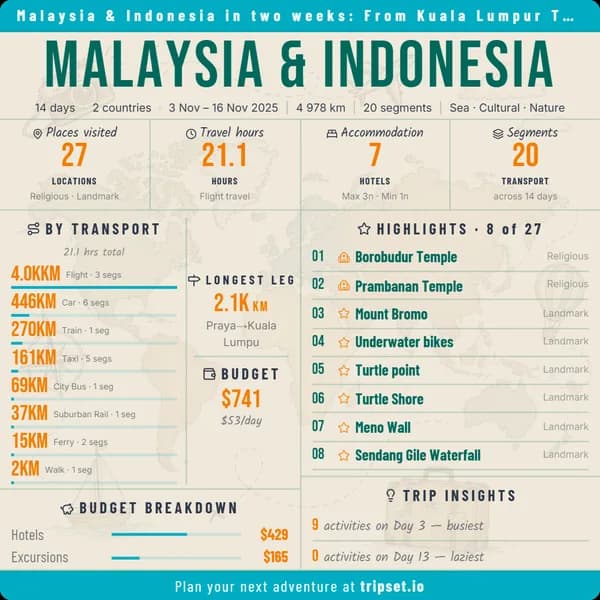
A full overview of the trip: title, dates, countries visited, an SVG route map with country highlights, day-by-day breakdown (places, transport, budget per day), top transport modes used, and a photo preview grid.
Photo Grid
A mosaic of your trip photos fills most of the canvas, with the route map and overall stats (days, countries, total cost) shown in a compact panel. Great for photo-heavy trips.
Story Card
One card per day — pick any day to get its hero photo, place list, transport summary, and daily cost. Perfect for posting individual day recaps on Stories.
Style
Two styles to choose from — switch with one click, preview updates instantly.
Monochrome
Dark navy background with white text. Sharp, editorial look — works especially well for Twitter/X headers, blog hero images, and photo book covers where you want the data to stand out over the visuals.
Color
Light background with vibrant accent colors. Clean and warm — the default pick for Instagram Stories, Pinterest pins, and day-recap cards where brightness drives engagement.
What travelers, bloggers and Pinterest creators use it for
A static infographic beats a text caption every time — one image with route + stats + photos, ready to share anywhere.
Instagram Stories with poll stickers
9:16 vertical export with Summary or Story Card layout — post as a Story, add a poll ("Which day looked best?") and let followers engage with your trip.
Pinterest travel pins
Vertical 9:16 pins with route map + stats + photo grid — the exact format Pinterest rewards. Perfect for driving blog traffic to travel guides and itineraries.
Travel blog cover and hero images
16:9 landscape or 1:1 square as the top image of a blog post. Data-accurate route map from real coordinates — no AI-invented geography.
Day-by-day recap posts
Story Card layout gives one shareable image per day — post them as an Instagram carousel or a series of Stories to recap the trip day by day.
Twitter/X and Facebook headers
16:9 exports fit perfectly as Twitter/X profile headers and Facebook cover images — showcase your last trip permanently on your profile.
Travel journal and photo book covers
Photo Grid layout with monochrome theme makes an editorial cover page for printed travel journals, photo books and family memory albums.
Image specs
- Output format
- PNG (lossless)
- Aspect ratios
- 9:16 (Instagram Stories, TikTok, Pinterest) · 1:1 (Instagram feed, Telegram, Facebook) · 16:9 (Twitter/X headers, blog hero, Facebook cover)
- Max resolution
- 1920 × 1080 px (16:9) / 1080 × 1920 px (9:16)
- Layout types
- Summary · Photo Grid · Story Card
- Themes
- Monochrome · Color
- Map
- SVG route map with country highlights (GeoJSON)
- Processing
- In your browser — no upload, no server
- Browsers
- All modern browsers (Chrome, Edge, Firefox, Safari)
- Price
- Free
Frequently asked questions
How do I create a travel infographic from my itinerary?
Open your itinerary in TripSet and click "Trip Infographic" in the header toolbar. Choose a format (9:16, 1:1, or 16:9), a layout type (Summary, Photo Grid, or Story Card), and a style (Monochrome or Color), then click Download PNG. The image is generated in your browser — no upload required.
What information does the Summary infographic include?
The Summary layout shows your trip title, dates, countries visited, a route map with country highlights, a day-by-day breakdown (places, transport modes, and cost per day), top transport types, and a grid of trip photos. Everything is pulled automatically from your itinerary data.
Can I make an infographic for just one day of the trip?
Yes. Choose the Story Card type, then select the day you want. The card shows that day's hero photo, list of places, transport used, and total cost. You can create a separate card for each day and post them as a series.
Which format should I use for Instagram Stories?
Use 9:16 (1080 × 1920 px) — this is the native vertical format for Instagram Stories, TikTok, and Snapchat. For a regular square feed post, use 1:1 (1080 × 1080 px). For Twitter / X or Facebook banners, use 16:9 (1920 × 1080 px).
Can I change the hero photo in the Story Card?
Yes. When Story Card is selected, a photo picker appears below the canvas. Choose any photo attached to that day, or leave it on Auto to use the trip cover photo. Photos are loaded directly from your itinerary — no re-upload needed.
What does the route map in the infographic look like?
The map is an SVG rendered from GeoJSON world data. Countries you visited are highlighted in the theme color, and a polyline connects your stops in order. It's a clean schematic overview — not a photorealistic satellite map — which scales well at any resolution.
Does Trip Infographic work on mobile?
Yes — Trip Infographic works in all modern browsers including Safari on iOS and Chrome on Android. The settings panel stacks vertically on small screens. The exported PNG is always at full resolution regardless of your device.
How is Trip Infographic different from Photo Reel?
Trip Infographic exports a static PNG image — one picture summarizing your trip with stats, map, and photos. Photo Reel exports an MP4 video slideshow of your photos with motion effects and color grades. Use Infographic for a post or Story card; use Photo Reel when you want a video.
How is Trip Infographic different from the Animated Route video?
The Animated Route video is an MP4 of your route moving across a map — it shows the geography of your journey in motion. Trip Infographic is a still PNG image that summarizes the whole trip with stats, photos, and a static map. Different use cases: video for Reels, infographic for posts and Stories.
Is Trip Infographic free?
Yes. Trip Infographic is free in TripSet — no subscription required. Sign up at app.tripset.io, open any itinerary, and access it from the header toolbar.
Also useful
AI Image Prompt →
Generate a ready-to-use prompt for Midjourney, DALL-E or Stable Diffusion — vintage map poster, watercolor map, 3D relief and 9 more styles.
Photo Reel →
Turn your trip photos into an MP4 slideshow with Ken Burns motion and cinematic color grades.
Animated route video →
Generate an MP4 of your route moving across a map — 3D camera, multiple formats, no upload.
Publish your trip →
Share the full itinerary behind your infographic on Explore, where others can clone it.
Create your Instagram Story, Pinterest pin or blog cover
Free · Instagram · Pinterest · Twitter · Blog · All browsers · No upload
Start planning