Loading…

Video export
Animated route map video for YouTube vlogs, Reels and TikTok
Generate an MP4 of your itinerary as an animated route moving across a map — the go-to intro shot for travel vlogs, TikTok route reveals, Reels openers and road-trip recaps. Multiple aspect ratios (16:9 for YouTube, 9:16 for Reels/TikTok, 1:1 for Instagram), camera modes and map styles. Renders entirely in your browser — nothing is uploaded.
This is a video export inside TripSet's trip planner — build your itinerary first (or copy one from Explore), then export it as a video. Free to sign up.
Try it free
Chrome and Edge only — requires WebCodecs API
How it works
1. Open your itinerary
Open an existing itinerary in TripSet (or build one first), go to Video Export, then choose aspect ratio, map style, camera mode, and route type.
2. Preview
Click Preview to watch a live animation in the canvas before committing to a full render.
3. Generate
Click Generate HD — the video renders in your browser with a live progress bar.
4. Download
Save the MP4 file. Or use the Share button to send directly on mobile.
What travel vloggers and content creators use it for
A moving-map animation is the fastest way to tell "we went from A to B to C" — a staple of travel channels and vlog intros on YouTube.
YouTube travel vlog intros
Open your video with an animated route zooming across the map — instant context for viewers. Follow-3D camera + Colorful & Detailed map style is the classic vlogger look.
TikTok and Reels route reveals
Vertical 9:16 render, Fast 540p quality, straight-line route mode — a 5-second reveal that fits perfectly at the start of a short-form recap.
YouTube Shorts openers
9:16 aspect ratio with day title cards overlay makes an eye-catching Shorts opener showing the whole trip in under 15 seconds.
Road-trip recap videos
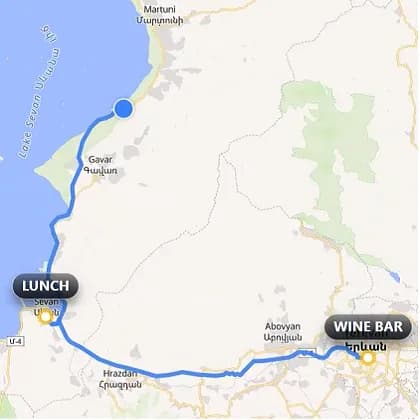
Real-roads routing (Mapbox) traces your actual driving path across states or countries — perfect for road-trip reels, cycling loops or hiking traverses.
Travel documentary and film intros
Top-down camera + Clean & Minimal style creates a polished editorial map animation for documentary-style intros and location-establishing shots.
Blog post and article embeds
Embed the MP4 at the top of a blog post to preview the route. Square 1:1 or 16:9 versions work in every CMS and load faster than an interactive map.
Customisation options
Configure before rendering — no re-exports needed to change settings.
Map style
Colorful & Detailed for lively travel content. Terrain & Hiking when the landscape matters — mountains, national parks, trekking routes. Clean & Minimal for editorial or documentary intros where the route itself is the story.
Camera mode
Follow 3D — camera sweeps behind a moving marker as it traces your route. The go-to for YouTube vlog openers and cinematic Reels intros. Top-down — clean overhead view, suited for documentary, educational, or atlas-style presentations.
Route type
Real roads via Mapbox routing, or straight lines between stops.
Scope
Animate the full itinerary or a single day — switch in the settings panel before rendering.
Day title cards
Overlay day labels as the route progresses.
Quality tier
Full 1080p, High 810p, or Fast 540p depending on your need.
Video specs
- Format
- MP4 (H.264)
- Resolution
- Up to 1920×1080
- Frame rate
- 30 FPS
- Aspect ratios
- 16:9 (YouTube) · 9:16 (Reels, TikTok, Shorts) · 1:1 (Instagram, Telegram) · 4:3 · 3:4
- Browsers
- Chrome and Edge only (WebCodecs API)
- Processing
- In your browser — no upload, no watermark
- Price
- Free
Frequently asked questions
How do I create an animated travel route video?
Open any itinerary in TripSet, go to the Video Export page, configure your settings (aspect ratio, map style, camera), click Preview to check, then Generate HD to render the MP4. The whole process runs in your browser — nothing is uploaded to a server.
What video format does TripSet export?
TripSet exports MP4 files encoded in H.264 (avc1) at 30 FPS and up to 12 Mbps bitrate. Resolutions go up to 1920×1080 for 16:9, or 1080×1920 for vertical 9:16 format.
Can I make a vertical video for Instagram Reels or TikTok?
Yes. Choose the 9:16 aspect ratio (1080×1920) to get a vertical video ready for Instagram Reels, TikTok, or YouTube Shorts.
Can I use this as an intro for my travel YouTube vlog?
Absolutely — that's one of the most common use cases. Choose 16:9 aspect ratio, Follow-3D camera mode and Colorful & Detailed map style for the classic vlogger opener. A typical 7–10 day route renders in 20–40 seconds of video, ideal to overlay a title card and use as the first shot of your episode.
Why does animated route video only work in Chrome and Edge?
The video is rendered using the WebCodecs API, which lets the browser encode H.264 video directly without sending data to a server. Firefox and Safari do not support WebCodecs yet, so the feature is limited to Chrome and Edge.
Does the video show real roads or straight lines?
You can choose. Select "Real roads" to use Mapbox routing — the animated route follows actual streets and highways between your stops. Select "Straight lines" for a cleaner, schematic look.
Can I animate just one day of a multi-day itinerary?
Yes. In the settings panel, switch from "Full route" to a specific day. Only that day's stops and route segment will animate.
How long does it take to generate the video?
Render time depends on the length of your route, the quality setting, and your device's GPU. A typical 7–10 day trip at Full 1080p takes a few minutes. Use Fast 540p for a quicker preview-quality render.
Is the animated route video free?
Yes. Video export is free to use in TripSet — no subscription required. Sign up at app.tripset.io, open any itinerary, and go to the Video Export page.
Can I export a photo slideshow instead of a map video?
Yes. TripSet also generates a photo slideshow from the photos attached to your itinerary. The slideshow export is separate from the animated map video and is available in the same trip planner at app.tripset.io.
Also useful
Export to KML, GPX, PDF →
Download your route for Google Maps, Garmin, OsmAnd, or as a formatted PDF.
Photo Reel →
Turn your trip photos into an MP4 slideshow with Ken Burns effects and color grades.
Trip Infographic →
Generate a shareable PNG — route map, stats, and photos in one image for Stories or posts.
Publish your trip →
Share the itinerary behind your video on Explore, where others can watch and clone it.
Create your route video for YouTube, TikTok or Reels
Free · YouTube · TikTok · Reels · Blog · Chrome and Edge · No upload
Start planning